
Normal view

  • ✇Popular Science
  • 12 new features Apple quietly added in iPhone updates David Nield
    The major refreshes that Apple gives its software each year get a lot of attention—you can read our round-up of new iOS 26 and macOS 26 features—but there are also plenty of minor updates that appear during the rest of the year as well. These minor updates don’t often include big changes that will significantly affect how you use your devices, but they regularly feature small improvements and tweaks that are well worth knowing about. Listed below you’ll find all the notable upgrades includ
     

12 new features Apple quietly added in iPhone updates

22 May 2026 at 14:08

The major refreshes that Apple gives its software each year get a lot of attention—you can read our round-up of new iOS 26 and macOS 26 features—but there are also plenty of minor updates that appear during the rest of the year as well.

These minor updates don’t often include big changes that will significantly affect how you use your devices, but they regularly feature small improvements and tweaks that are well worth knowing about.

Listed below you’ll find all the notable upgrades included in iOS 26.3 and iOS 26.4, the two most recent updates pushed out by Apple, besides the usual slew of tweaks and bug fixes. To check for new updates on your iPhone, head to Settings, then select General > Software Update.

iOS 26.3

screenshot of transfer iphone
Switch over to Android more easily. Screenshot: Apple

Limit precise location: iOS 26.3 lets you limit how closely your carrier can track your location, though the carriers themselves also need to add support for the feature. Apple says it’s like the difference between knowing which neighborhood you’re in, and which address you’re at: Choose Mobile Service > Mobile Data Options from Settings to find it.

Transfer to Android: Apple is lending Google a hand and making it a little more convenient for you to switch over to Android, if you’ve had enough of Apple phones. When an iPhone is in a transfer state, an Android handset can move data over from it, and you can find this from iOS Settings by selecting General and then Transfer or Reset iPhone.

Weather and Astronomy wallpaper: Wallpaper options get a refresh in this update as well, with Weather and Astronomy breaking out into their own categories so you can get to these types of backdrop more quickly. Open Settings, then select Wallpaper to make changes—you can either customize the existing iOS theme, or work on a new one.

iOS 26.4

screenshot of video podcasts
Apple Podcasts is fully embracing video. Screenshot: Apple

Average Bedtime: iOS 26.4 comes with a small tweak to the Health app, in the form of a new Average Bedtime metric in the Sleep section. It gives you another stat to check against your sleep quality, and to use for goal setting, if you’re using a connected Apple Watch (or another device that plugs into the Health app) to monitor your slumber overnight.

CarPlay AI: Third-party AI assistants such as Claude and ChatGPT can be accessed through the CarPlay interface for the first time with this software update, though you’re still relatively limited in terms of what you can do. You can only interact with them via voice, and you can’t use them to control any of the settings in CarPlay or your vehicle.

Concerts Near You: One of the new additions to Apple Music with this update is a Concerts Near You feature, and you can probably guess how it works from the name. Once you’ve granted Apple Music permission to use your location, on the Home tab you’ll find a new section for upcoming gigs in your area, matching the artists that you regularly listen to.

screenshot of find concerts near me
Look out for local concerts in the Apple Music app. Screenshot: Apple

New emoji: Updates to iOS regularly come with new emoji included—after they’ve been approved by The Unicode Consortium—and that’s the case with this update too. Among the new graphics you can look forward to using in your messages are symbols for a trombone, a Bigfoot-style creature, a treasure chest, and a distorted (eyes bulging) face.

Offline music recognition: You can now use your iPhone to identify a song that’s playing in your vicinity without an internet connection… kind of. If you tap on the Recognize Music button in Control Center when you’re offline, iOS will record a snippet of audio data to use for reference, and then look up the song title whenever your device gets back online.

Playlist Playground: Back to Apple Music upgrades, and another new feature you’ll spot in the app is Playlist Playground. This is a new way of generating a playlist from an AI prompt box. So if you enter something like “the essential indie music hits of the 90s,” you’ll get back an appropriate selection of songs. Try it with moods, genres, and feelings.

screenshot of recognize music feature
The Recognize Music tool can now save requests when you’re offline. Screenshot: Apple

Purchase sharing: File this under changes that seem to be relatively minor, but which can make a significant difference for certain people. If you’re an adult in a Family Sharing group, it’s now possible to use separate payments for purchases—so you don’t have to use the same bank account or credit card for everything that goes through iOS and its apps.

Urgent reminders: Another Apple app getting an improvement with this software update is Reminders. While the option to categorize reminders as ‘urgent’ isn’t new, there is now a smart list of these urgent items, so you can more easily find them. There are also a couple of extra ways to mark something as urgent, via a long press or from the floating toolbar.

Video podcasts: Many a podcast is adding video these days, and while Apple Podcasts has technically supported video before now, the latest software update brings some big improvements. You can switch between audio and video more easily, you can download videos for offline playback, and you can adjust the playback speed for videos as well.

The post 12 new features Apple quietly added in iPhone updates appeared first on Popular Science.
  • ✇Funky Junk Interiors
  • Space-Saving DIY Garden Tool Storage With An Old File Cabinet Funky Junk Donna
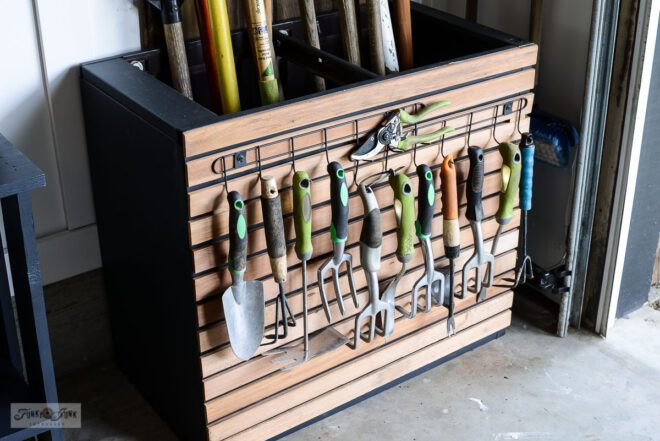
    Transform an old file cabinet into clever, space-saving garden tool storage that keeps your outdoor essentials tidy and easily accessible! A creative DIY project that is affordable and useful by combining recycling with functionality for every gardening enthusiast. As a Fusion and Amazon Influencer, this post contains affiliate links in which I earn a small […] The post Space-Saving DIY Garden Tool Storage With An Old File Cabinet appeared first on Funky Junk Interiors.
     

Space-Saving DIY Garden Tool Storage With An Old File Cabinet

26 March 2026 at 00:16

DIY garden tool storage with an old file cabinetTransform an old file cabinet into clever, space-saving garden tool storage that keeps your outdoor essentials tidy and easily accessible! A creative DIY project that is affordable and useful by combining recycling with functionality for every gardening enthusiast. As a Fusion and Amazon Influencer, this post contains affiliate links in which I earn a small […]

The post Space-Saving DIY Garden Tool Storage With An Old File Cabinet appeared first on Funky Junk Interiors.

  • ✇Popular Science
  • 4 Epsom salt uses around the house (and 7 ways to never use it) Debbie Wolfe
    Most are aware of Epsom salt’s ability to soothe sore muscles. The compound itself is magnesium sulfate, a naturally occurring mineral. But while Epsom salt has become a staple in medicine cabinets, it’s also earned a reputation as a cure-all for everything from dirty grout to struggling tomato plants.  Some of those uses are grounded in science, while others are little more than persistent household myths. Before you sprinkle Epsom salt on your garden or mix it into a DIY cleaning solution,
     

4 Epsom salt uses around the house (and 7 ways to never use it)

7 June 2026 at 17:00

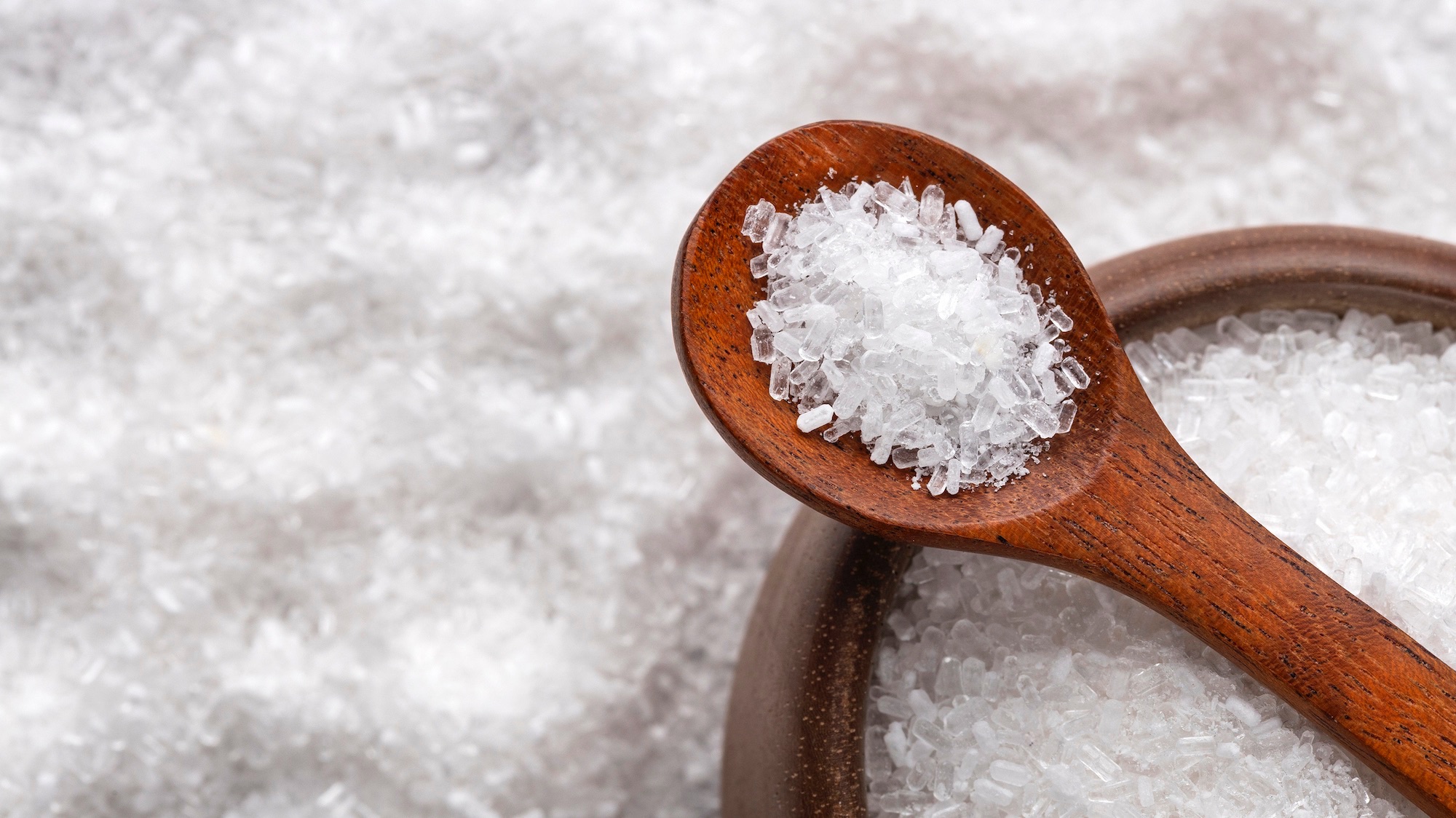
Most are aware of Epsom salt’s ability to soothe sore muscles. The compound itself is magnesium sulfate, a naturally occurring mineral. But while Epsom salt has become a staple in medicine cabinets, it’s also earned a reputation as a cure-all for everything from dirty grout to struggling tomato plants. 

Some of those uses are grounded in science, while others are little more than persistent household myths. Before you sprinkle Epsom salt on your garden or mix it into a DIY cleaning solution, here’s what it is actually good for and where you should skip it altogether.

Ways to use Epsom salt around the house

1. Soak away sore muscles

Epsom salt’s reputation as a post-workout recovery aid comes from its magnesium content. Magnesium plays a key role in muscle contraction, energy production, and recovery.  Intense exercise can temporarily deplete the body’s magnesium stores. 

A 2024 study found that magnesium soaks after a workout reduced muscle soreness, improved recovery, and provided protective effects against exercise-related muscle damage. To use Epsom salt safely post-workout, dissolve 1 to 2 cups in a warm bath and soak for about 15 to 20 minutes. While an Epsom salt soak is generally considered safe for most people, you should always consult your doctor before using any supplement regularly.

2. Create a mild scouring scrub

Epsom salt works as a gentle abrasive because its crystals are coarse enough to scrub without scratching surfaces. This property makes it a great alternative to steel wool or other abrasive cleaners. 

To use, mix it with dish soap or a gentle liquid cleaner to create a paste, then scrub baked-on food residue in pots and pans, grout lines between tiles, soap scum on tubs and shower walls, or dirt and mildew on plastic and metal outdoor furniture. 

3. Exfoliate rough skin

Epsom salt isn’t just useful to scrub pots and pans; it can also help smooth rough, dry skin. Research has found that Epsom salt can help remove dead skin cells and improve skin texture when used as an exfoliant. It’s naturally abrasive enough to buff away dead skin cells, yet gentle enough to use on areas like your hands, feet, and elbows. 

Skin experts suggest mixing Epsom salt with a small amount of water or a nourishing oil, such as coconut or olive oil, to create an easy DIY exfoliating scrub. For best results, exfoliate gently and follow with a moisturizer to help lock in hydration.

4. Use in crafts and décor

Epsom salt is perfect for crafting! Its crystals are easy to work with and create a frosted, glittery texture that crafters use to dress up mason jars, candle holders, and seasonal centerpieces. An easy way to frost a glass surface is to brush it with a thin layer of craft glue, roll it in dry Epsom salt, and let it dry completely. The result resembles ice or snow, making it a popular choice for winter and holiday décor. 

Ways You Definitely Shouldn’t Use Epsom Salt

1. As a miracle garden fertilizer

Social media has turned Epsom salt into a gardening cure-all, with viral posts promising lusher tomatoes, bigger blooms, and faster growth. The science doesn’t back it up. Epsom salt supplies magnesium and sulfur, nothing more. And, most garden soil already contains sufficient magnesium, especially when amended with organic matter. 

What plants need to grow and thrive are nitrogen, phosphorus, and potassium, the core nutrients that true fertilizers provide. Epsom salt delivers none of those. Correcting a magnesium deficiency and fertilizing a plant are two different jobs: the first fixes a specific problem, the second feeds the plant. Save the Epsom salt for the rare case when a soil test confirms a deficiency, and reach for a real fertilizer when your garden needs feeding.

2. To prevent blossom end rot

Blossom end rot is the dark, sunken patch that appears on the bottom of tomatoes, peppers, and eggplant. There are online claims that suggest crushed eggshells and Epsom salts will help cure this common garden issue. However, blossom end rot signals a calcium deficiency, and that deficiency is a water transport problem in the plant. Epsom salt not only fails to fix it but can also make it worse. Excess magnesium in the soil blocks calcium uptake, worsening the deficiency that caused the rot. To prevent blossom-end rot, keep soil evenly moist, protect roots from damage, and let a soil test guide fertilizer decisions.

3. As a pest repellent

Gardening blogs and social media accounts frequently recommend spraying Epsom salt solutions on roses and vegetables to repel slugs, insects, and other garden pests. According to Washington State University Extension, there is no scientific evidence to substantiate claims that Epsom salt controls any pest species. Worse, the most common application method, spraying Epsom salt solution directly on foliage, can cause leaf scorch, meaning you may end up harming your plants while doing nothing to the pests.

4. As a weed killer

Homemade weed killer recipes combining Epsom salt, vinegar, and dish soap have also spread across social media as a cheap, natural alternative to commercial herbicides. However, they don’t always work as advertised. You can apply enough to damage weeds, but that concentration comes with two serious drawbacks: the cost exceeds that of a conventional weed product, and the amount needed to harm weeds will poison the soil for other plants and soil life. If weeds are the problem, manual removal, mulch, and weed barriers are safer first steps; if you want a chemical solution, a product designed for that purpose will cost less and cause less collateral damage.

5. As a household disinfectant

Epsom salt is only magnesium sulfate. This compound does not kill bacteria, viruses, or fungi, which means no amount of Epsom salt, however concentrated, will disinfect a surface. Disinfectants work by chemically destroying pathogens, and Epsom salt simply lacks the properties to do that. 

For actual disinfection, reach for products that carry an EPA registration number, such as bleach solutions, hydrogen peroxide, and isopropyl alcohol, which are all inexpensive, widely available, and proven to kill germs.

6. To melt ice on driveways

Every winter, the same tip resurfaces on social media: sprinkle Epsom salt on icy driveways and walkways to melt the ice safely. The appeal is understandable;  Epsom salt is cheap, widely available, and feels less harsh than rock salt. The problem is that it barely works. Like all salts, magnesium sulfate does lower the freezing point of water, but it does so far less effectively than rock salt or commercial de-icers, which rely on sodium chloride, calcium chloride, or magnesium chloride, compounds specifically chosen for their ability to melt ice quickly at low temperatures. 

7. As a universal cleaning solution

Epsom salt is a useful tool when the job calls for mild abrasion, but reaching for it as a catch-all cleaner means doing half the job. What it cannot do is clean in any chemical sense. It won’t break down grease, lift stains, or kill germs. As noted earlier, neither magnesium nor sulfate has no antibacterial or antiviral properties, so using Epsom salt as a general-purpose cleaner leaves surfaces physically scrubbed but chemically untreated. 

The post 4 Epsom salt uses around the house (and 7 ways to never use it) appeared first on Popular Science.

  • ✇Pine and Poplar
  • DIY Spiral Christmas Tree – From Paint Sticks! Zoe Hunt
    You’ve probably seen the viral spiral Christmas trees made from wood. I wanted to make a smaller version to sit on my entryway table. So we tried to think of the cheapest way to get thin pieces of wood to create this wood Christmas tree. Our solution: paint sticks! Yes, using a few packs of […] The post DIY Spiral Christmas Tree – From Paint Sticks! appeared first on Pine and Poplar.
     

DIY Spiral Christmas Tree – From Paint Sticks!

5 December 2025 at 17:48

You’ve probably seen the viral spiral Christmas trees made from wood. I wanted to make a smaller version to sit on my entryway table. So we tried to think of the cheapest way to get thin pieces of wood to create this wood Christmas tree. Our solution: paint sticks! Yes, using a few packs of […]

The post DIY Spiral Christmas Tree – From Paint Sticks! appeared first on Pine and Poplar.

  • ✇Earth911
  • Guest Idea: The Hidden Environmental Cost of Digital Hoarding Guest Contributor
    Every photo, email and forgotten download stored in the cloud lives somewhere physical. Most of the time, it’s in a data center that runs around the clock, drawing power and emitting greenhouse gases. Digital clutter feels weightless, but it carries a real environmental cost that most people never think about. The good news is that cleaning it up is one of the easiest green actions anyone can take. Most people picture hoarding as stacked newspapers and overflowing closets. Digital hoarding is qu
     

Guest Idea: The Hidden Environmental Cost of Digital Hoarding

27 May 2026 at 11:00

Every photo, email and forgotten download stored in the cloud lives somewhere physical. Most of the time, it’s in a data center that runs around the clock, drawing power and emitting greenhouse gases. Digital clutter feels weightless, but it carries a real environmental cost that most people never think about. The good news is that cleaning it up is one of the easiest green actions anyone can take.

Most people picture hoarding as stacked newspapers and overflowing closets. Digital hoarding is quieter. It’s things like 11,000 unread emails sitting in an inbox, the 4,000 photos from a holiday taken six years ago, most of them blurry or duplicated, or the streaming subscriptions no one canceled.

It’s different from intentional archiving, where someone keeps records for a purpose. Digital hoarding happens by default. It occurs through inaction and the comfortable assumption that storage is essentially free. It feels like nothing until someone starts adding it up.

The Data Centers Behind the Inbox

All of that information has to live somewhere. The warehouse-scale facilities that store, process and move the world’s digital information consumed 415 terawatt-hours of electricity globally in 2024. That figure is projected to reach roughly 945 terawatt-hours by 2030, driven primarily by the rapid expansion of AI workloads. This is a demand surge unlike anything the sector has seen before.

That AI dimension is important to note. General cloud storage and consumer data are no longer the main story. The infrastructure being built right now is being built for AI, and the energy requirements are growing accordingly.

As senior scientist Vijay Gadepally at MIT Lincoln Laboratory has noted, “As we move from text to video to image, these AI models are growing larger and larger, and so is their energy impact. This is going to grow into a pretty sizable amount of energy use and a growing contributor to emissions across the world.”

What’s less discussed is that passive stored data still draws continuous power for cooling and maintenance. In many data centers, the cooling system is one of the most energy-intensive components, accounting for about 40% of the facility’s total power consumption. A meaningful portion of data center energy goes toward simply keeping data at rest rather than processing or transmitting it.

A photo no one has looked at since 2018 still occupies server space that must be cooled, powered and maintained around the clock. Multiply that across billions of users who have never once audited their cloud storage, and the scale becomes hard to ignore.

Some research has put the ICT sector’s share of global greenhouse gas emissions between 1.8% and 3.9%, depending on methodology and growth trajectory.

Why It Keeps Happening

Storage is cheap, deletion feels risky, and there is always the nagging thought that a file might be necessary someday, even if that day never actually comes. Unlike physical clutter, a digital mess is invisible. It doesn’t take up space in a room or collect dust. That invisibility is precisely what makes it so easy to ignore.

Most of what people store has no practical value and hasn’t been accessed in years. However, it takes a deliberate decision to let it go.

What Can Be Done?

Tackling digital hoarding requires no specialist knowledge and no significant time investment. Repeating a few deliberate habits consistently makes a real difference.

Recent research confirms that a surprising amount of a data center’s energy is spent on background tasks that manage and ensure the reliability of stored files, even those that are never accessed. While the savings from your personal cleanup are small, it adds up. When replicated across hundreds of millions of users, it compounds into something that registers at the infrastructure level.

Start with email. Unsubscribing from newsletters and promotional lists takes minutes and stops a steady stream of data from accumulating indefinitely.

Next, look at cloud storage. Most people are keeping far more than they realize across things like Google Photos, iCloud and Dropbox. A quick audit tends to surface duplicates, large video files and folders that haven’t been opened in years. Deleting them permanently rather than just moving them to a trash folder actually reduces the load on the server infrastructure.

Unused applications are also taking up space. Every app that runs in the background, syncs data or stores files in the cloud draws resources. Removing anything that hasn’t been opened in three months or more is a small action with a compounding effect.

A monthly digital declutter, even just 30 minutes, keeps accumulation from getting out of hand. Treating it like a recurring calendar task rather than a vague intention makes it far more likely to stick.

Byte-Sized Decluttering

Individual action on digital hoarding might feel modest. However, the effects add up when they’re shared across hundreds of millions of people. The collective impact of better digital hygiene reduces demand on data centers that are expanding right now. Having less stored data, fewer idle fuels and more deliberate use of cloud services can make a big difference.

Cleaning out a photo library won’t solve the climate crisis, but it is a genuine contribution and one that costs almost nothing to make.

About the Author

Lola Marks is a health and wellness writer specializing in lifestyle evolution and optimization. Lola is also the Senior Editor of Body+Mind Magazine, where she prioritizes holistic living as a way to achieve a sense of balance and community.

The post Guest Idea: The Hidden Environmental Cost of Digital Hoarding appeared first on Earth911.

  • ✇Pine and Poplar
  • DIY Stool – Beginner-Friendly! Zoe Hunt
    A few years ago, we built a DIY wood stool for our bathroom. It was a pretty design, but I tried to get creative with the wood finish. We distressed the wood to make it look aged and it was super cool. The problem was that all of the extra texture and grooves didn’t make […] The post DIY Stool – Beginner-Friendly! appeared first on Pine and Poplar.
     

DIY Stool – Beginner-Friendly!

28 March 2025 at 14:57

A few years ago, we built a DIY wood stool for our bathroom. It was a pretty design, but I tried to get creative with the wood finish. We distressed the wood to make it look aged and it was super cool. The problem was that all of the extra texture and grooves didn’t make […]

The post DIY Stool – Beginner-Friendly! appeared first on Pine and Poplar.

  • ✇Funky Junk Interiors
  • DIY Multifunctional Side Of Fridge Storage Rack With Coffee Mug Hooks Funky Junk Donna
    Maximize your kitchen space with this DIY multifunctional side of fridge storage rack, featuring convenient coffee mug hooks for easy access and stylish organization. Transform clutter into order while keeping your favorite mugs within arm’s reach! Made with price efficient cedar strips and dollar store hooks, it’s cool AND economical, and looks like it was […] The post DIY Multifunctional Side Of Fridge Storage Rack With Coffee Mug Hooks appeared first on Funky Junk Interiors.
     

DIY Multifunctional Side Of Fridge Storage Rack With Coffee Mug Hooks

18 March 2026 at 00:03

side of fridge storage rackMaximize your kitchen space with this DIY multifunctional side of fridge storage rack, featuring convenient coffee mug hooks for easy access and stylish organization. Transform clutter into order while keeping your favorite mugs within arm’s reach! Made with price efficient cedar strips and dollar store hooks, it’s cool AND economical, and looks like it was […]

The post DIY Multifunctional Side Of Fridge Storage Rack With Coffee Mug Hooks appeared first on Funky Junk Interiors.

  • ✇Pine and Poplar
  • DIY Dumbbell Rack – Wooden Design! Zoe Hunt
    Our old weight rack was out of room. Since getting it a few years ago, our dumbbell collection has expanded and now a bunch of our dumbbells were scattered around the floor.  When trying a new workout program, I saw the prettiest wood dumbbell rack in the background. I made some tweaks to the design […] The post DIY Dumbbell Rack – Wooden Design! appeared first on Pine and Poplar.
     

DIY Dumbbell Rack – Wooden Design!

23 January 2025 at 22:10

Our old weight rack was out of room. Since getting it a few years ago, our dumbbell collection has expanded and now a bunch of our dumbbells were scattered around the floor.  When trying a new workout program, I saw the prettiest wood dumbbell rack in the background. I made some tweaks to the design […]

The post DIY Dumbbell Rack – Wooden Design! appeared first on Pine and Poplar.

  • ✇Popular Science
  • How to avoid garbage news on Google Search David Nield
    When you search Google for something topical, you might see a cluster of headlines from news outlets, reporting breaking stories related to your search query. If you want to focus on those results, you can click to see More news, or navigate to the News tab at the top of the screen. How these news sources are chosen depends on a variety of signals and factors—just the same as any other Google results—but you now have the ability to set “preferred” sources that will always show up first. Ma
     

How to avoid garbage news on Google Search

24 May 2026 at 17:15

When you search Google for something topical, you might see a cluster of headlines from news outlets, reporting breaking stories related to your search query. If you want to focus on those results, you can click to see More news, or navigate to the News tab at the top of the screen.

How these news sources are chosen depends on a variety of signals and factors—just the same as any other Google results—but you now have the ability to set “preferred” sources that will always show up first.

Maybe you want more New York Times and less CNN, or vice versa—Google will let you pick your favorites (which hopefully include Popular Science). This can also help you surface content from news sources you wouldn’t otherwise see in Google, like a local website covering your area.

How to set preferred sources

screenshot of setting preferred sources
Setting preferred sources on Google. Screenshot: Google

If you run a Google search on the web for something in the news, topical enough that the Top stories box comes up in your results, you can then click the small icon next to the Top Stories heading to pick your sources. The icon looks like a couple of rectangles with a plus symbol on top.

This brings up a new dialog, where you can pick specific sources. Just start typing the name of the website you want to read more often, and select it when it appears. You can’t add any website on the internet though, only those that are regularly updated (and therefore qualify as news sites).

While there’s no specific set of rules about how often preferred sources show up, Google says you’ll see them “more often” than other outlets. As you add more sources, you’ll see the option to Reload results based on your last search. This should now include your selected sources, as long as they’ve published something related to your search recently.

You can head back to this dialog via the Top stories box whenever you want, and add new preferred sources or remove existing ones—there’s actually no limit to the number of sources you can add, so you’re able to cover a full gamut of perspectives and topics. You can also head to google.com/preferences/source directly in your web browser.

Many news websites have now started adding Add as a preferred source on Google badges on their articles, which you can click directly to jump to the preferred sources dialog. In our articles, you’ll find it’s labeled Add Popular Science, just under the headline and sub-heading—click the link to add us.

Preferred sources and Google News

screenshot of customize topics page
Google News also lets you select your favorite topics. Screenshot: Google

Google hasn’t officially said anything about how preferred sources in Google search relates to the dedicated Google News website and apps for Android and iOS, but there is some overlap here.

If you head to Google News on the web and then open the Following tab, you’ll see that the preferred sources you’ve selected via search are also listed under Sources. However, there’s no way (at the moment) to add new sources from Google News—you need to go through Google search.

On the dedicated Google News portal, if you click the three dots next to any story, you can opt to see more stories or fewer stories like it—but you can’t specifically request to see more of a particular publisher. You can block an outlet though, by choosing Hide all stories from… on the same menu.

There are other factors that affect your Google News selection as well, and if you scroll down the front page of Google News to the Your topics section, there’s a Customize button to the right. Click on this, and you can tell Google News which topics you want to see more of (like sports, entertainment, and business, for example).

We may well see a closer connection between preferred sources and Google News in the future, but for now there are a variety of ways to customize the stories you get served up inside Google’s portals. If you’re spending a lot of time reading news, it’s worth making sure your favorite publishers appear first.

The post How to avoid garbage news on Google Search appeared first on Popular Science.

Sindy: "Image Maker" Vintage UK Children's Magazine Paper Doll (Marvel Comics LTD.) 1986

JillyBeanSSF posted a photo:

Sindy: "Image Maker" Vintage UK Children's Magazine Paper Doll (Marvel Comics LTD.) 1986

Sindy: "Image Maker" Vintage UK Children's Magazine Paper Doll (Marvel Comics LTD.) 1986

*Appeared In: Sindy, "Every Girl's Best Friend!" UK Magazine Issue No. 13 - July 12 (Marvel Comics LTD.) 1986

JillyBean's "FLAT CHICKS" The World of Paper Dolls

  • ✇Pine and Poplar
  • Which Stain Should You Choose? Zoe Hunt
    This post is sponsored by Minwax. All opinions are my own. Before we begin, be sure to join Minwax’s email list for the best staining tips and project inspiration.  As you browse through the stain aisles and see all of the different colored stain cans and various stain lines, you might find yourself wondering “what’s […] The post Which Stain Should You Choose? appeared first on Pine and Poplar.
     

Which Stain Should You Choose?

12 December 2025 at 16:50

This post is sponsored by Minwax. All opinions are my own. Before we begin, be sure to join Minwax’s email list for the best staining tips and project inspiration.  As you browse through the stain aisles and see all of the different colored stain cans and various stain lines, you might find yourself wondering “what’s […]

The post Which Stain Should You Choose? appeared first on Pine and Poplar.

  • ✇Popular Science
  • How to go back in time with Google Maps David Nield
    Google Maps has been helping us get from A to B since 2005. In that time, it’s amassed a huge amount of data about the world—from business opening times to national boundaries. And alongside the map itself, there’s satellite imagery and imagery at ground level, courtesy of Street View. You may well have used Street View before, dropping a little pegman onto a road in Google Maps to see what it looks like if you’re actually stood on the sidewalk. What you might not be aware of is that you can
     

How to go back in time with Google Maps

30 May 2026 at 17:07

Google Maps has been helping us get from A to B since 2005. In that time, it’s amassed a huge amount of data about the world—from business opening times to national boundaries. And alongside the map itself, there’s satellite imagery and imagery at ground level, courtesy of Street View.

You may well have used Street View before, dropping a little pegman onto a road in Google Maps to see what it looks like if you’re actually stood on the sidewalk. What you might not be aware of is that you can go back in time in Street View—back to 2007 in the first places that were mapped with this technology.

It means you can check out your neighborhood (or someone else’s neighborhood) as far back as twenty years ago. You can see what’s changed and what hasn’t. It works for the most iconic streets and locations in the world too, from Times Square to the Arc de Triomphe. Here’s how to use the feature.

How to find Street View time travel

screenshot of golden gate bridge on google streetview
See how iconic spots have changed over time. Screenshot: Google

The feature is a little easier to use through Google Maps on the web, not least because there’s more screen real estate to work with. Scroll and pan to the part of the world that you want to take a look at, or use the search box up in the top left corner to jump to somewhere specific.

You can find the little Street View pegman icon down in the bottom left corner (yes, pegman is his official name). Click and drag the pegman over to the map, and you’ll see all the roads, paths, lanes, and freeways that support Street View highlighted in blue. Drop the pegman on the spot you want to take a look at.

You’ll go straight into the immersive Street View mode, with ground-level imagery. Use the mouse or the arrow keys on your keyboard to take a look around. You can also start moving up and down the street using the up and down arrow keys, or by clicking the arrow icons overlaid on the ground.

Here’s the time travel bit: Click the See more dates link up in the top left corner, and along the bottom of the screen you’ll see thumbnails of older imagery, together with dates—scroll to the right to see the oldest available pictures.

Bear in mind that the total number of different date options, and the years they cover, are going to vary depending on  how long Google’s Street View cars have been covering a particular area, and how regularly they’ve been back. You’ll find there’s quite a substantial difference in how far you can go back, depending on where you are in the world.

Exploring neighborhoods of the past

screenshot of 60 university place on google streetview
Historical imagery can be accessed through the Google Maps mobile apps too. Screenshot: Google

As soon as you select one of the image thumbnails representing an earlier year, you’ll be taken back in time in Street View. You can still look around and explore as before—the views you see will be from the same year you’ve selected, until you choose a different month and date from the carousel at the bottom.

It lets you check out how businesses and houses have changed over time, and in some locations you’ll even be able to see roads or buildings being built (or being leveled) as the years go by. For busy areas, you get an interesting peek into the changing fashions for both people and vehicles.

It’s possible to check out famous landmarks in this way too, though if they’re iconic then they don’t tend to be modified much over time. When you’re ready to return to the present day, click the See latest date link in the top left corner.

You can time travel through Street View through the Google Maps apps for Android and iOS as well. To get to Street View, long-press on a road on the map, then tap the Street View thumbnail that pops up in the lower left corner. You can then tap the date label (top left) to find other dates.

It’s also worth noting that historical imagery is available in Google Earth too, for both Street View images and satellite maps. Either drag the pegman in from the bottom right corner and then choose See more dates, or click the historical imagery button in the top toolbar (it looks like a globe with an arrow around it).

The post How to go back in time with Google Maps appeared first on Popular Science.

❌
Subscriptions